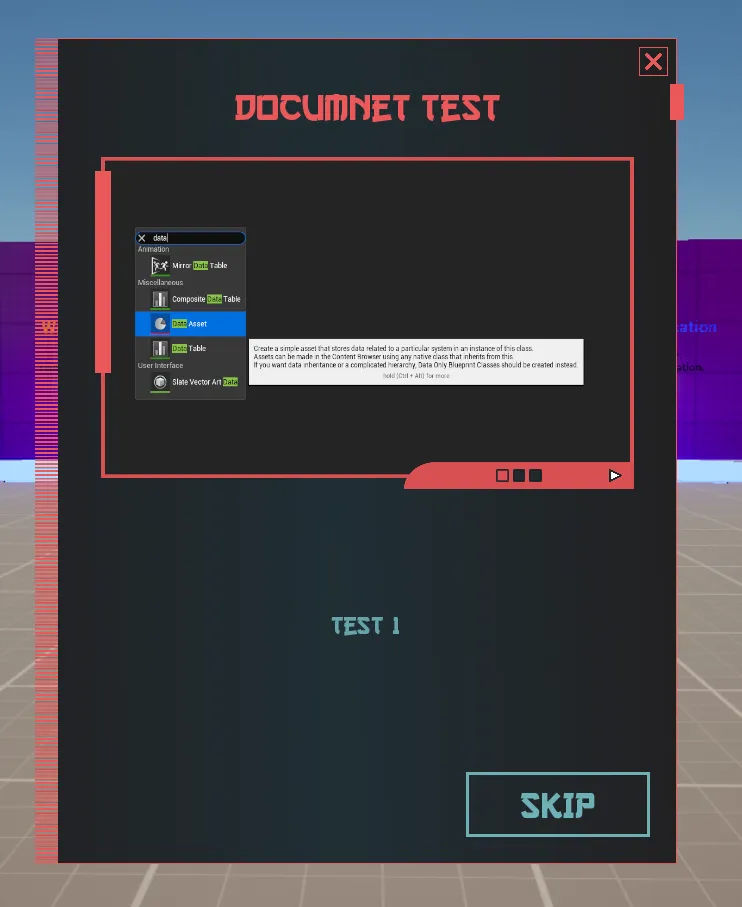
Tutorial Window
Build data-driven tutorials with PDA_TutorialWindow data assets.
1. How to Use the Tutorial Window
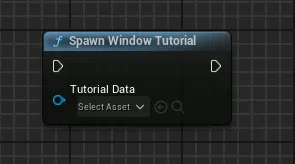
You can create and add a Tutorial Window anywhere in your project by calling the Spawn Window Tutorial node in any blueprint.
The most important input for this node is Tutorial Data. Assign a pre-created Data Asset to this input.
Note
There is no need to manually add it to the player’s screen. Doing so can result in multiple bugs. If you have properly added the BP_StackerSpawner_AC component, this process will occur automatically, and the tutorial windows will be added and stacked on the screen seamlessly.
2. How to Create a Data Asset and Provide a Tutorial
- Open the Content Drawer and navigate to your desired folder in the project.
-
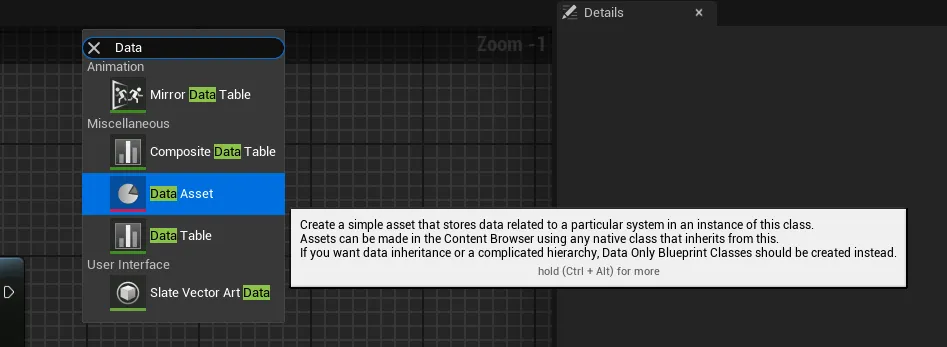
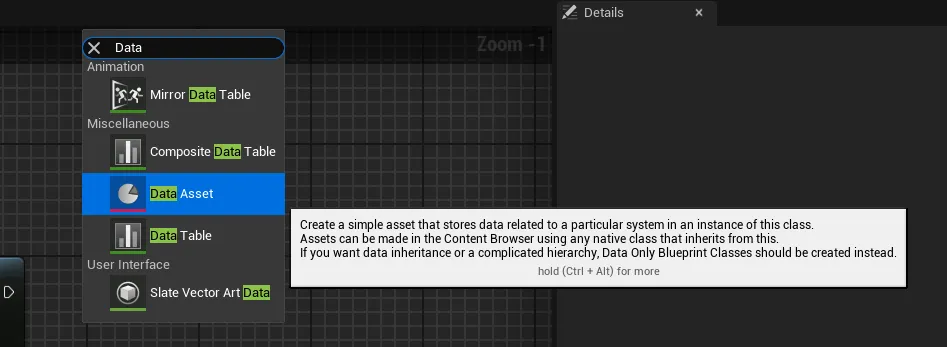
Right-click, search for Data Asset, and create one.
-
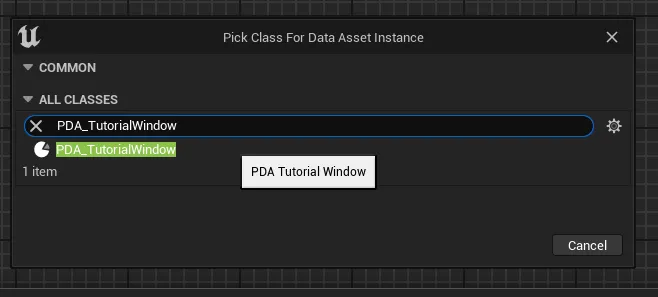
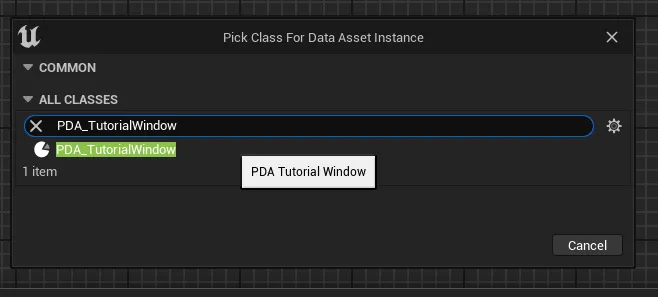
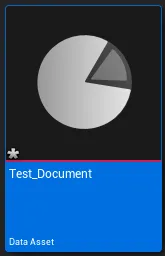
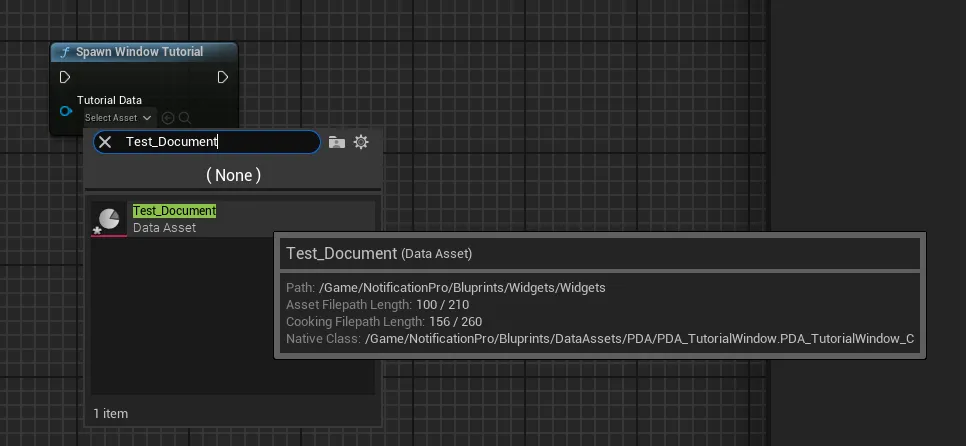
Select the data asset type as PDA_TutorialWindow and name it as you prefer.
-
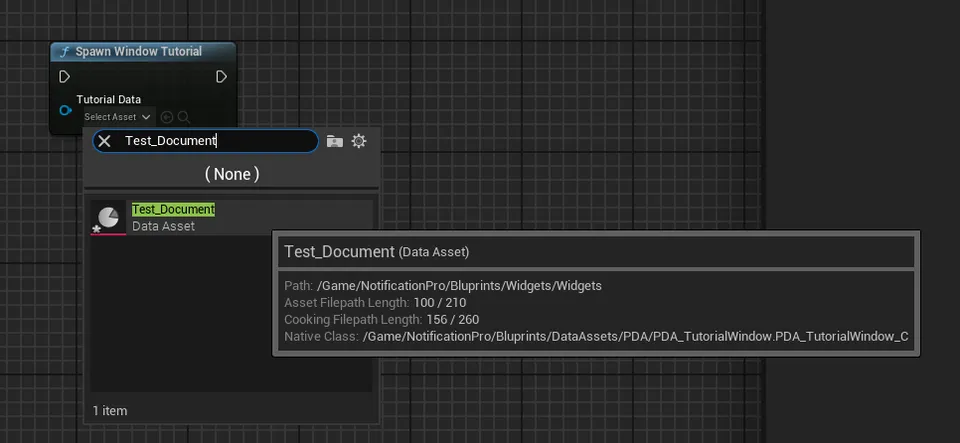
Assign the created Tutorial Data Asset to the Spawn Window Tutorial node.
3. Customizing the Tutorial Window
Open the created Data Asset and customize your tutorial with the following options:
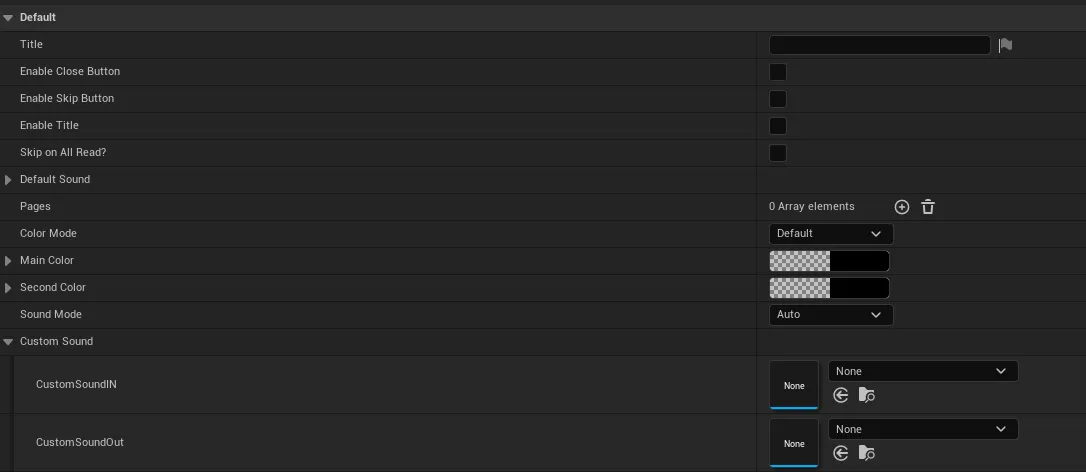
- Title: A text input that sets the title of the tutorial.
- Enable Close Button: A boolean input. When set to False, the close button will not be displayed in the tutorial.
- Enable Skip Button: A boolean input. When set to False, the skip button will not be displayed in the tutorial.
- Enable Title: A boolean input. When set to False, the tutorial title will not be displayed.
- Enable On All Read: A boolean input.
- Ensures that the player reads all tutorial pages.
- The Skip and Close buttons will only become active after reaching the last page.
- Default Sound: An audio input for the default sound that plays when the tutorial spawns.
- Color Mode: An E_ColorMode input.
- Use the Default option for the project’s predefined colors.
- Use Custom to assign a custom color to the tutorial.
- Spawn Sound Mode: An E_SpawnSoundMode input.
- Choose Custom to play a sound of your choice.
- Select No Sound for no sound.
- Use Auto for the default spawn sound.
4. Customizing with Custom Values
At the end of the Data Asset Spawn Tutorial Window, you can assign custom values by setting related inputs to Custom mode.
Example:
If you want to use your own custom sound instead of the default, set Spawn Sound Mode to Custom and provide your desired sound in the Custom Sound input.
5. Add Pages to the Tutorial Window
Step 1. Click the {+} button on Pages in the data asset.

Step 2. Assign a description and an image to each tutorial page.
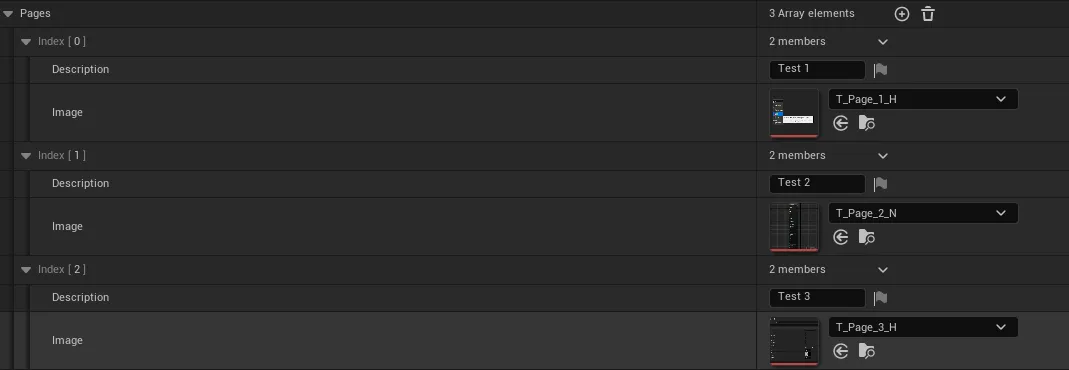
Step 3. Run the game and enjoy.