Marker settings
Every look and behavior setting a marker has, group by group.
Anywhere you see marker data (the presets in DA_ProjectSetting, Custom Marker Data, Data Of Item Type and so on), it has these same six groups.
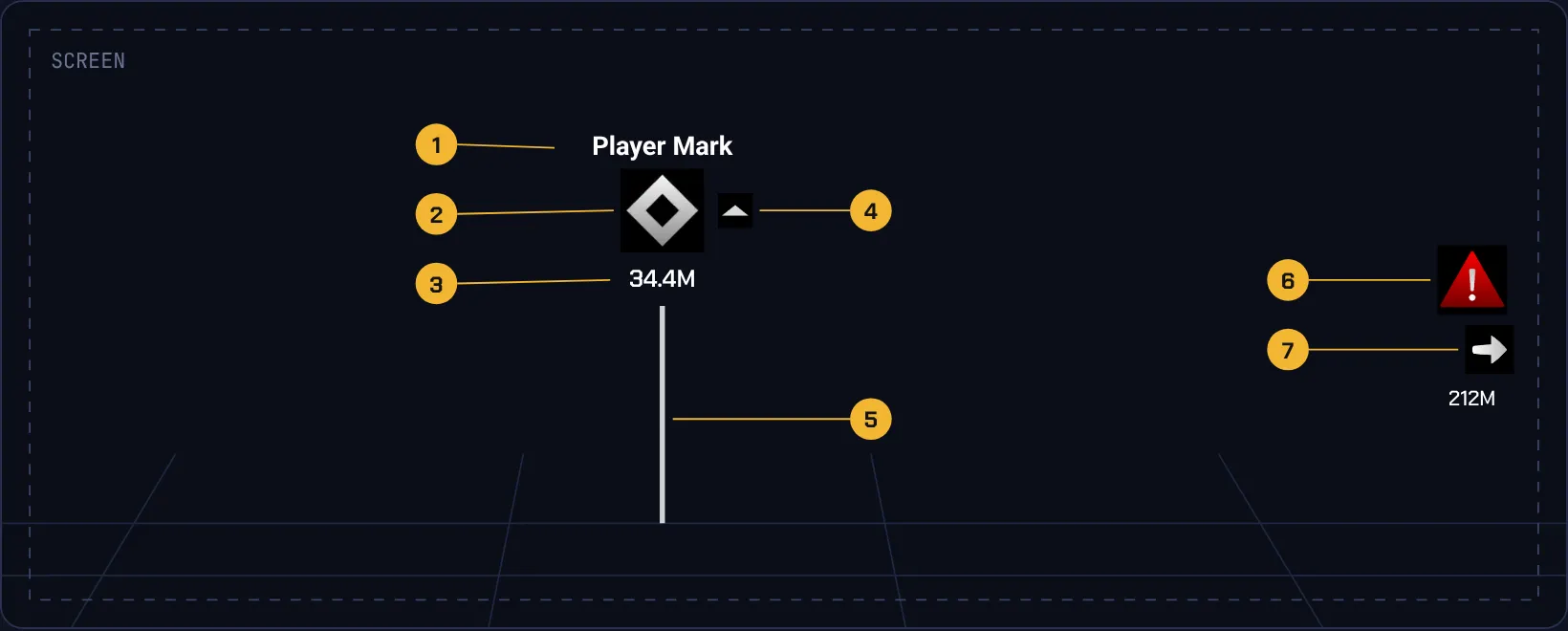
Parts of an on-screen marker
 Parts of an on-screen marker.
- Name:
Show Name
- Icon:
Marker Icon
- Distance:
Show Distance
- Above/below indicator:
Show Elevation Indicator
- Beam:
Show Marker Line
- Pinned to the screen edge:
Edge Clamping
- Direction arrow:
Show Direction Arrow
General Data
| Setting |
Default |
What it does |
Marker Default Name |
|
The name shown when Marker Name is empty. |
Life Time |
0 (never) |
Seconds before the marker removes itself. 0 means never. |
Marker Name Font |
Roboto, 10 |
Font, size and outline of the name text. Default is Roboto, size 10, outline 1. |
Icon Data
| Setting |
What it does |
Marker Icon |
The icon shown on screen above the object. |
Compass Icon |
The icon shown on the compass strip. It can differ from the screen icon. |
Icons Tint |
Tint for the icons. Player and Player Mark use the player color instead. |
Direction Arrow Icon |
The arrow image that points the way when the marker is off screen. |
| Setting |
Default |
What it does |
Marker Scale |
1 |
On-screen marker size. 2 means double. |
Marker Offset |
Z 200 |
Offset from the actor's origin in centimeters. Z = 200 lifts the marker 2 m, above a character's head. |
Visibility
| Setting |
Default |
What it does |
Show In Screen Space |
|
Whether the marker appears in the world view, over the object. |
Min Show Distance (M) |
3 |
Closer than this (meters) and the on-screen marker hides so it doesn't block your view. |
Max Show Distance (M) |
0 (no limit) |
Farther than this and the on-screen marker hides. 0 means no limit. |
Show In Compass |
|
Whether the marker appears on the compass strip. |
Min / Max Show Distance Compass (M) |
1 / 0 |
The same distance range, for the compass. A max of 0 means unlimited. |
Show Behind Wall |
|
When off, the on-screen marker hides while a wall or obstacle is between the camera and the target. The demo objectives have this off. |
Edge Clamping
| Setting |
Default |
What it does |
Edge Clamping |
|
When the target is off screen, keep the marker pinned to the screen edge instead of hiding it. |
Edge Clamping Padding |
50 |
Distance from the screen edge for a pinned marker, in pixels. |
Elements Data
| Setting |
Default |
What it does |
Show Name |
|
Show the name above the icon. |
Show Distance |
|
Show the distance in meters under the icon and on the compass. |
Show Direction Arrow |
|
Show a direction arrow on an edge-pinned marker. |
Show Elevation Indicator |
|
Show a small up/down arrow when the target is above or below the player. |
Elevation Threshold |
150 |
Minimum height difference (cm) before the up/down arrow shows. 150 is about one floor. |
Show Marker Line |
|
A vertical light beam at the mark's location in the world. Only for marks placed by players. |
Marker Line Color |
|
Beam color. A Player Mark uses the player color. |
Updated Oct 13, 2026 · 2 views · Stuck? Open a support ticket